Showing posts with label How-to. Show all posts

Thursday, August 29, 2013

Use your Windows PC as a Virtual Router

If you have a laptop or wireless network card installed desktop running on Windows 7, Windows 8 or Windows Server 2008 R2, you can use it as a virtual wireless router and make a WiFi hotspot.

Therefore you will be able to wirelessly share your internet connection with other WiFi devices such as laptop, smartphone, iPod Touch, iPhone, Android phone, zune, netbook, wireless printer and etc.

How to do it? A simple application, called Virtual Router Manager, helps you to turn Windows system as Virtual Router just like an access point. It is a free and open source software. It provides the most secured wireless encrypted - WPA2 connection.


This app neither have any ad-wares nor tracks your web traffic. After the installation, give a network name (SSID) and a password as you wish. Click the 'Shared connection' combo and choose the connection which you want to share with. Make sure your password must be at least 8 characters.

Click here to download the Virtual Router Manager.

That's all. Enjoy!

Wednesday, August 28, 2013

Record Skype video calls for free

Skype is a freemium voice-over-IP service and instant messaging client founded in 2003 by Janus Friis from Denmark and Niklas Zennstrom from Sweden. On 10 May 2011, Microsoft Corporation acquired Skype Communications.

With the introduction of Skype, there was a tremendous revolution in communication technology. Today it becomes an inevitable one for everyone in the world. People make free voice or video calls via Skype with their dearest ones who lives in the other part of the world.

Video call is the greatest feature provided by Skype for free. Everyone likes to record the video calls made through Skype. A father who is abroad might like to record his naughty children’s talk or actions. A business organization likes to record their video conferences. But there is no option to record any video or audio calls with the software.


Recently I found free software called Free Skype call recorder developed by DVDVideoSoft developers. It records the Skype video calls smoothly.

Click record button when video call starts. Keep in mind it won't automatically record your video calls. This application lets you to record the calls in three ways:


1.    Record all sides: This option records your friend’s video as well as your video.
2.    Record other side only: This option records your friend’s video only not yours.
3.    Record audio only

Click here to download this software and install in your PC.

Wednesday, August 21, 2013

The best image resizer forever

We often upload images for various purposes. We share photos on Facebook, send them to our friends through email or publish them in websites. I noticed some people who upload their photos as soon as they captured from the camera. They do not resize their pictures. The problem is, size of a picture plays major role while uploading. Generally size of a high quality picture is obviously high and it will take a big deal of time and meter your internet data. Moreover, sharing a high quality picture on Facebook is also pointless. Therefore, I  recommend you to resize your photos before uploading them.

If you have a few pictures, you can resize them using Photoshop or Ms. Paint. But if your pictures are in large number, it is the best way to go for batch image-resizing software like Light Image Resizer, a free software for personal use.

Light Image Resizer, early it was called VSO Image Resizer, is a simple but powerful software for image resizing. You can simply resize your pictures one by one or via batch mode. Once you created a profile, then your image resizing process becomes much easier.

Light Image Resizer (LIR) resizes and converts your pictures without losing its quality with the selected size. It supports wide range of picture formats. It is available as a windows shell extension. Therefore, just right click to easily resize pictures as copies or continue to work on the original HQ photos. Then share your resized photos online with friends.

How to resize:

Load or drag your photos to the application and click ‘Next’. Choose a profile form the dropdown menu. In my case, I chose 800 X 600 px, which is the best resolution for uploading pictures to Facebook. That’s enough. Click ‘Process’ button to start the process. Within a few seconds, you pictures will be resized. Generally LIR creates copies and keeps your originals in the same folder. You can stop creating copies by choosing ‘Resize Original’ from the Action dropdown menu. It also allows to change to the destination folder.


How to watermark a picture:

Another cool feature provided by LIR is that you can create your own watermarks to put on the pictures for the copyright purpose. It is a much easy job. After setting up your profile, click ‘Effect’ tab and check the ‘Integrate watermark’. Then click ‘Watermark’ button. There are two choices for putting watermark. If you have already created a watermark image, you can print it on every picture. In next method, enter some text to appear on the pictures. Click ‘Text’ tab and add your text. Set font color, size and opacity and press ‘Preview’ button to see the effect. If you are satisfied click ‘OK’ button.


How to add border:

Check ‘Add Border’ in the Effect tab.


Click here to download the software from author's site

Monday, August 19, 2013

Print a document directly from Android Phone

Have you ever heard about ‘Cloud Print’ and how does it work? Cloud Print is an amazing feature facilitated by Google. If you have an Android phone or tablet, you can print your documents from the device directly without sending them to your PC.

Cloud Print works with web based technology. Each time you print, your file is sent to your printer over the web. Therefore you don't need to stay near the printer. You can print a document from another country too.

Everybody now, is very hectic and feels boring to connect and send the documents between PC and phone. With this new technology, you can print your document from wherever you are. For example you can print your document from your mobile phone having a cup of tea at your office canteen.

What are basic requirements for cloud printing? Don’t worry everything you have. You need a PC with a printer, A phone running with Android OS, internet connection for both PC and phone and Gmail ID.

Here are the steps

Step1:

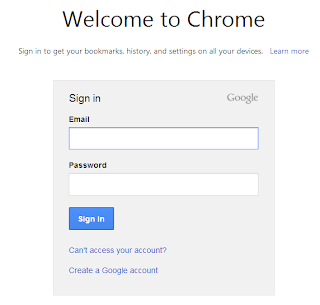
If you use Google Chrome first time in your PC, you are prompted to connect your browser with your Google account. If you are already connected, please skip this step. There are many advantages when you connected to Chrome. But this post doesn’t cover those advantages.

Give your username and password to connect and click Sign in.

Step2:

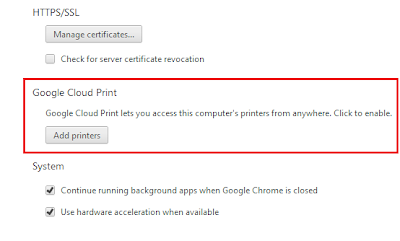
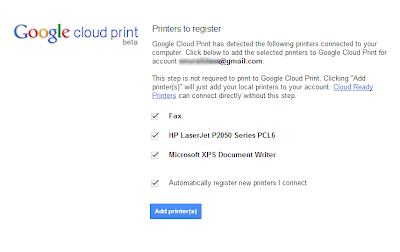
Go to Settings and click Show advanced settings… Scroll the browser till the end. You can find Google Cloud Print option. Click Add Print button. Google Cloud Print automatically detects the printers that have been connected with your PC. It also detects your virtual printers. You can add all printers to Cloud Printing service. After selecting the printers click Add Printer(s) button.


Step3:

Now this is the time for installing Cloud Print app to your phone. Cloud Print is a free app powered by Google. You can download it from Google Play Store.

Step4:

After installation, you are prompted to add to your Google account with the app. Use the same account and connect.

That’s all. Now open a picture or document with the Cloud Print app and tap ‘Click here to Print’ button.


Wednesday, August 14, 2013

Convert a Youtube Video to MP3 format with Online Converters

Youtube videos can be converted into MP3 format. Sometimes our favorite songs are available on Youtube but they are not in MP3 at any other places or sources. This time you can convert the Youtube songs to MP3 format.

Several desktop apps are available on internet but this tutorial looks only how to use online converters to do this task. All that you have to do is, copy and paste the URL of the video in the box provided. The web app converts the video into MP3 and gives you download link.

Here I am going to list out 5 web apps for Youtube to MP3 conversion. Keep mind downloading and converting Youtube videos are against to Youtube policy.

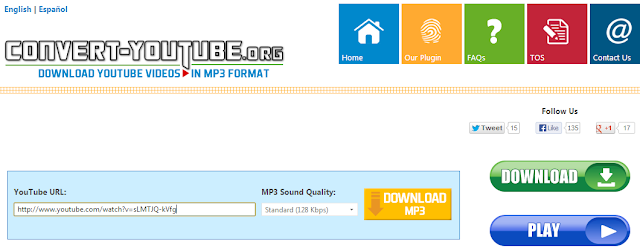
1. convert-youtube.org

This is my favourite web app which provides fastest and easiest way to convert to our favourite videos to MP3. The main reason is, it allows to set different sound quality such as Low, Standard, High and CD quality. The app gives you an optional plugin for easy conversion to MP3 format while browsing YouTube.


2. tomp3youtube.com

This app gives two options for the conversion. While playing a Youtube video, simply add ‘tomp3’ before ‘youtube.com’ URL.   For example:
Before http://www.youtube.com/watch?v=9bZkp7q19f0
After http://www.tomp3youtube.com/watch?v=9bZkp7q19f0
The next option is usual way – place URL and click ‘Convert to MP3’ button.


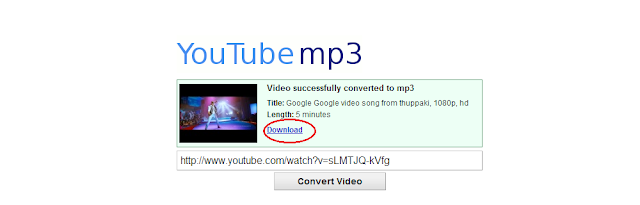
3. youtube-mp3.org

This is very simple app. Place the URL and start the downloading within a minute. All video will be performed in high quality mode with a bit rate of 128 kBit/s.

4. flvto.com

It is a cool app. You can see the conversion graphically.

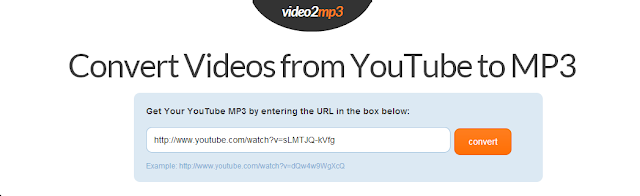
5. video2mp3.net

The web app also offers the fastest mp3 converter ever!