Showing posts with label Windows. Show all posts

Tuesday, July 23, 2013

Shut down Windows 8 with 1 Click

Windows 8 came with nice look and well improved UI. Though it was especially designed for touch screen systems, it also works perfectly with mouse and other pointing devices.

How to shut down the system? This is the first experience most of you should have when you started to use Windows 8 because it doesn’t have the shut down button at its usual place. Then you have learnt how to do it though. By clicking the at the top-right corner of the desktop, you will get charms sidebar and go to settings > Power > shut down. [Win + C shortcut also brings the charms menu].
Nevertheless it needs 4 clicks or taps to turn off the PC. Alt + F4 also gives the quickest way to shut down.

Is it possible to shut down Windows 8 with just one click? Yes it’s possible. Let me explain how to do it. Here you don’t need to download any extension, software or codes.

1. First create a shortcut for shutdown process by right clicking on the Desktop and selecting New > Shortcut

 2. Type ‘Shutdown /s /t 0’ without quotes in the box provided (/s means shutdown the PC with a timeout of zero seconds (/t 0).  Then hit enter key and click ‘Finish’.


3. Now you will see a shortcut on the desktop. The double click of the shortcut will turn off the PC but this tutorial is extended till pinning the shortcut to metro tiles.


4. To change the icon of the shortcut, right click it and choose properties.


5. In the properties box, click ‘Change icon’ button and choose the regular icon for shutdown.


6. Now again right click the shortcut and choose ‘Pin to start’


Now you can shut down your pc with one click.


Wednesday, July 17, 2013

How to shut down Windows 7 faster

There is a massive improvement in Windows 7 start up with the new technology introduced by Aaron Dietrich of the Windows Client Performance team. However Microsoft Windows 7 has a slight drawback in optimizing shut down process. When my PC was fully loaded it was taking my time in minutes to shut down. I was terribly annoyed till I came to this solution. This method does not harm your operating system or hardware.

You need to do a small change in the registry file called ‘WaitToKillServiceTimeout’. Keep in mind, every change done in the registry affects the operating system. Therefore you are requested to follow the tutorial carefully.

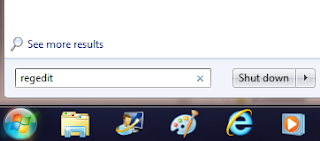
First type “regedit” into the search box and hit enter key. Registry editor window will appear. Now navigate the path given below:

HKEY_LOCAL_MACHINE\SYSTEM\CurrentControlSet\Control


Find ‘‘WaitToKillServiceTimeout’ in the folder and double click it. Under the value data, change the default value to 2000 (2 seconds) . In my case, default value is 12000. (12000 means 12 seconds) Click OK to save the setting.

After this setting I am able to shut down my PC within 15 seconds.

Sunday, July 7, 2013

Use On-Screen Keyboard of Windows 7 for Different Languages.

Microsoft On-Screen Keyboard gives you an alternative solution to type in a document by clicking while your manual keyboard gets stuck. It displays a virtual keyboard with all the standard keys. By clicking the keys with a pointing device, letters are typed in. The basic problem in Windows 7 is that you cannot change the fonts as you like while Window XP On-Screen Keyboard simply allows. But there is an opportunity to use different languages.

Before that, I should mention here a great feature in Windows 7 On-screen keyboard is that it will automatically give words suggestions while typing. This sort of feature first introduced in mobile phone.


Let me explain how to change language. To get started, first you need to add your language keyboard.

Go to Control Panel > Clock, Language, and Region > Region and Language. Then click Change keyboards or other input methods.

This command displays the Region and Language dialog box. Now click “Change keyboards” . Click “Add..” button and select your language.


After selecting a language, click OK and then Apply. Your language keyboard is attached to language bar which is on the Task bar (near the system tray.)


This is time to bring out the On-Screen Keyboard by clicking Start > Accessories > Ease of Access  and then by clicking On-Screen Keyboard.

Select your language from the language bar. Now type in notepad or word