Thursday, July 11, 2013

How to download Google fonts for Desktop Use

If you are not satisfied about the fonts while designing something with Photoshop or any applications, it is the best way go for Google fonts. There are several stylish fonts available in Google font showcase and they don’t cost a dime. You can download them for free and use them with any desktop applications such as Word, Powerpoint, Photoshop, Corel Draw etc.


Google allows the users to use the fonts in their websites as well as download for desktop uses.
Follow the steps.

Step 1: Go to www.google.com/fonts
Step 2: Find your favorites fonts by using the tools at the left panel. Once you found your favorite one, click ‘Add to collection’ button which is at the corner of each font showcase in blue color.
Step 3: Click Download button at the top-right of the page. A fly menu will display. Choose the first option out of three ‘Download the font families in your Collection as a .zip file’. Your fonts will be downloaded as a zip file.

Step 4: Extract the zip file and select the fonts.
Step 5: Go to Control Panel > Appearance and Personalization > Fonts. Paste your fonts.
That’s all.

Wednesday, July 10, 2013

How to embed a Google map into a website or blog

Google maps offer street maps and a route planner for traveling. They are very useful for various kinds of people especially business people who often use to locate their business places. Therefore a customer can easily reach the places.

Embedding a Google map into a website or blog is very easy.

Step 1: Go to http://maps.google.com and type the name of the location you would like to embed.
Step 2: Click button which at the top left of the panel.
Step 3: Copy the HTML code under the ‘Paste HTML to embed in website’.

Step 4: Now open source code of the page or blog and paste into it.


That’s all. Now your map will display on your page.

If you want to adjust the size of the map, you need to click ‘Customize and preview embedded map’ before embedding it. You have four option to change the size with preview. You can manually give the width and the height of the map by clicking custom option.

After the adjustment, copy the HTML from the box below the map.

Tuesday, July 9, 2013

Get ready for Facebook Graph Search

I want to learn some interesting facts about Taj Mahal. I have several options though but learning something from my friends is quite interesting. Here Facebook Graph Search is going to help me to find my friends by simply typing the words “My friends who visited Taj Mahal”. It will immediately list out friends who made a visit there.

Facebook has started rolling out the new Graph Search to U.S. users yesterday. People who speak U.S. English will have the facilities in the next few weeks.

As everybody knows that the mission of Facebook is ‘Make the world more open and connected’. With this concept, Facebook introduced the beta version of Graph Search at the beginning of the year. A few people were permitted to handle this tool and to learn how it works.

Graph Search is not a web search. It is specially designed for users of Facebook which holds a trillion of connections with a big and changing graph. In general, the web search is designed to take any open- ended range queries and return to you links that may have the answers to the questions you might be trying to ask. The Graph Search is quite different. It is designed to take a precise query and returned to you the answer not the links.

The people connected, photos, places and interests are the four main types of search helping you to find the people and things from the Facebook.

Facebook promise you the Graph Search is privacy aware. It says that you can only search for content that has been shared with you. . Graph Search is also integrated with Microsoft's Bing.

Find the people by typing in the Graph Search box like “My friends who like Star Wars” or “Photos of my friends taken in Singapore” it will immediately produce the results with list of friends or photos that we asked and it also gives how many friends or photos are connected to. “Movies my friends like” gives the list of movies that your friends like. You can extend your search into friends of friends. For instance, if you want to find the list of men of your friends of friends who are not married, simply type “Friends of friends who is a single man”.


Monday, July 8, 2013

Disable copying the PDF content

If you want to publish your ebooks with protecting its contents from not copying or converting to any text editor, this tutorial will be much helpful. 

A-PDF Password Security software makes the things easier. Though it is a shareware, its trail version allows you with the limited permission. Flow the link to get the trail version.

The software gives you 3 easy steps to accomplish your task.

Step 1
Select the option ‘Single PDF Document Security’ and click ‘Next’.


Step 2
Click ‘Browse’ button to select the ‘Source PDF’ file that you want to encrypt.


Step 3
Then select 'Security Level' in my case I’ve chosen high 256-bit AES; Acrobat 9.0 and above. (If wish, you can give a password to open the document by ticking the 'Require a password to open the document'.)


Now click ‘Save’ button to save the encrypted pdf document. Click ‘Finish’. Now open the file with a pdf viewer and try to copy things. It will never be copied.

Sunday, July 7, 2013

Use On-Screen Keyboard of Windows 7 for Different Languages.

Microsoft On-Screen Keyboard gives you an alternative solution to type in a document by clicking while your manual keyboard gets stuck. It displays a virtual keyboard with all the standard keys. By clicking the keys with a pointing device, letters are typed in. The basic problem in Windows 7 is that you cannot change the fonts as you like while Window XP On-Screen Keyboard simply allows. But there is an opportunity to use different languages.

Before that, I should mention here a great feature in Windows 7 On-screen keyboard is that it will automatically give words suggestions while typing. This sort of feature first introduced in mobile phone.


Let me explain how to change language. To get started, first you need to add your language keyboard.

Go to Control Panel > Clock, Language, and Region > Region and Language. Then click Change keyboards or other input methods.

This command displays the Region and Language dialog box. Now click “Change keyboards” . Click “Add..” button and select your language.


After selecting a language, click OK and then Apply. Your language keyboard is attached to language bar which is on the Task bar (near the system tray.)


This is time to bring out the On-Screen Keyboard by clicking Start > Accessories > Ease of Access  and then by clicking On-Screen Keyboard.

Select your language from the language bar. Now type in notepad or word


Friday, July 5, 2013

How to cut a video using VLC player

VLC is a simple and wonderful media player. It is a free and open source cross-platform player and supports a various types of video, audio formats and various  video streaming protocols.

This amazing player offers so many features than being a media player. In this video, let me explain how to split a video with VLC player. It is very simple. Keep in mind that older versions of VLC (below VLC 1.0) do not have this facility.

Here are the steps how to do it.

Step1:

Go to View Menu > Advanced Control. Advanced Control panel will be displayed beneath the progress bar of the player.


Step2:

Load your video with VLC player.(As usual Media > Open File /Ctrl + O).  Wait for the turn where it must be started (Beginning point).


Step3:

Click record button which is the first button on the Advanced Control and then click play button. As soon as it gets the ending point, where it should be stopped, click again the record button. That’s all. Your video automatically saves in My Documents (In Windows 7 Libraries > Videos)


Tips:

1.    Use the keyboard shortcut Shift + R to start / stop recording.

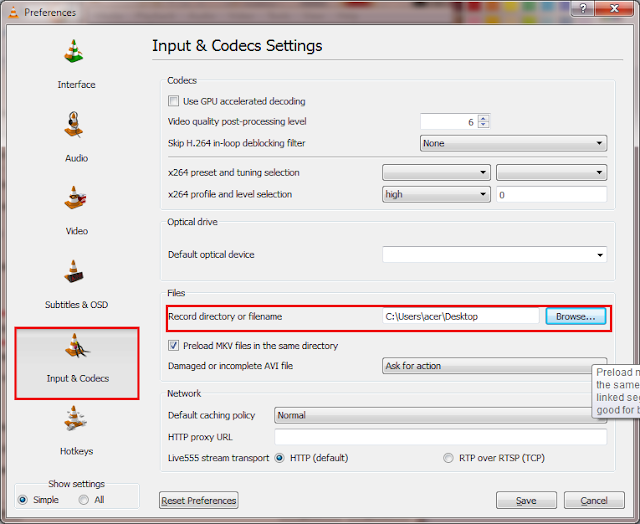
2.    To change the location of the files to be saved. Press Ctrl + P  (Tools > Preference). Click Input & Codecs. Under the File section browse the place where it should be saved in.


Thursday, July 4, 2013

Dual SIM Adapter for iPhone 5

It is an amazing news for iPhone 5 users who use more than one SIM card or phone number. Usually iPhone does not support a dual SIM card. The Magic SIM Elite has built the adapter using the latest Dual SIM technology and designed for latest Smartphones.

This Dual SIM Adapter is specially developed for iPhone 5 and simply allows you to switch between your SIMs in two easy clicks through your iPhone's existing menu.

You can use your normal SIMs without cutting into smaller as iPhone 5 comes with Nano SIM options. It offers the quickest and easiest SIM installation. Your SIMs simply fit into the adaptor, which fits your iPhone SIM slot.

As earlier said this adapter is compatible with iPhone 5 and iOS5 - iOS6 and fully supports connections to 3G, 4G, LTE, GSM, GPRS, EDGE, CDMA, UMTS, WCDMA and HSDPA. It costs £24.99.

Wednesday, July 3, 2013

How to control Facebook tagging

If you are very concern about your profile view, you need to do some more things. In my last Facebook tutorial, I explained how to prevent people from posting on your wall. Here I am going to give some tips to control your Facebook tagging.

Many of you have bad experienced with annoying tags. Some friends have a habit of tagging all his friends in his entire photos even if you are not in. You will be terribly irritated by the notifications made by comments.

Unfollow Post
Following post means you are aware of what is going on with a group post. Every time anyone of the group, does a comment on the post, a notification will appear. If you click Unfollow post beneath the post, you will not receive any notifications in this regard.


Timeline Review
Timeline Review is one the feature provided by Facebook which allows you to manually approve every post you are tagged in before they are published on your timeline. This sort of feature stops to publish anything automatically on your timeline.

However it does not control the posts appearing in search or news feed.


How can we control this?

Go to Privacy Settings > Timeline and Tagging. Under the ‘Who can add things to my timeline?’ section, click the Edit against ‘Review posts friends tag you in before they appear on your timeline?’. Click the drop down button and select ‘Enabled’.


Since then, you are notified on Activity Log. Click Activity Log button, it will list out the posts waiting for your approval. Click top right corner button of each post and select Report / Remove Tag. Now you will have two options to remove the tag or remove the post from the Facebook.

Tuesday, July 2, 2013

How to block someone’s email address in Gmail

When seeking for a web service, sometimes you need to register your email address to the service provider. Since then, most of the providers will continuously send you so many stuffs like newsletters, promotion details and so on. It will fill your inbox make it like a rubbish dump. Every time you need to select those emails and trash out. If any suspicious mail is found, Gmail automatically moves to Spam, a label listed probably above the Trash.

There are some ways to get rid of these spam mails from your inbox. Once you made settings, Gmail automatically moves those mails to Spam folder or delete them altogether.
In this how-to tutorial, let me explain how to block someone’s email address in Gmail and delete all the emails in this regard from inbox.

To get started, first log in your Gmail account. Mark the email address you want to block. If you are not able to memorize, open one of the spam mails and click “Show details” drop-down button. Copy the sender’s address from the fly menu.


Now go to Settings > Filters. Click “Create a new filter”. A fly menu will appear. Type or paste the email address you want to block in the “From” cage. If you wish, you can filter the emails come with certain subjects. You can also restrict the emails come with certain words like “Won lottery”, “I love you” and “Sex” by putting them into the “Has the words” cage.


If you want to block more than one people, simply add email addresses in the “From” cage with comma. After adding email addresses, click “Create filter with this search”. Now Gmail will display filter options. Tick the “Delete it” and click “Create filter”.


Gmail provides several options to filter out the emails than the deletion option. You can move the mails coming from those mail holders to another folder (label) or email address or archive them.

How to delete the previous mails of the spammers altogether?

After adding you email address, click “Test Search” button which is probably at the left bottom of the fly menu. It will show all the previous mails from the email address. Select all and click delete.


Monday, July 1, 2013

Share files between PC and Android devices with Leef USB Bridge

Till I found this new breed of USB 2.0 flash drive, transferring files between pcs, smartphones and tablets was boring and sometimes tricky due to the unsupported platforms. Leef Bridge is the simple device that easily allows you to share files or folders between the devices. 

Few years ago, every time I needed to hook up the smartphone to my computer with a cable to transfer a file or folder over to the smartphone from the pc. And same method was used for phone to pc.

Leef USB Bridge comes with two USB 2.0 connectors. One end is the normal full sized USB port connector and the other side is a micro USB connector. This is extremely easy to use. By sliding the device hither and thither, you will be able to hook into a windows computer and other devices. Both 2 connectors access the same memory.

The device is available in 16GB, 32GB and 64 GB storage capacities. The prices start at $18 for 16GB. The device supports with wide range of Windows and Android powered products. HTC, Motorola, LG (Optimus G Pro), Samsung Galaxy series and Sony are the major manufactures provide some compatible smartphones and tablets which run with Android or Windows. Samsung Galaxy camera also supports. Keep in mind, all Android powered devices do not support with this bridge device.